An Introduction to Zoom
Events
How to Use Zoom
Version Date: 21 April 2020
Using Zoom Recording Feature with Presentation,
Single Person Meetings
Note: Screenshots may be slightly different depending on your geographic region.
Sign Up Process
Step 1: Go to zoom.com/signup.
Step 2: Enter your email address and verification code.
Step 3: Select Sign Up.
Step 4: A confirmation email will be sent. Your Zoom account will need to be activated.
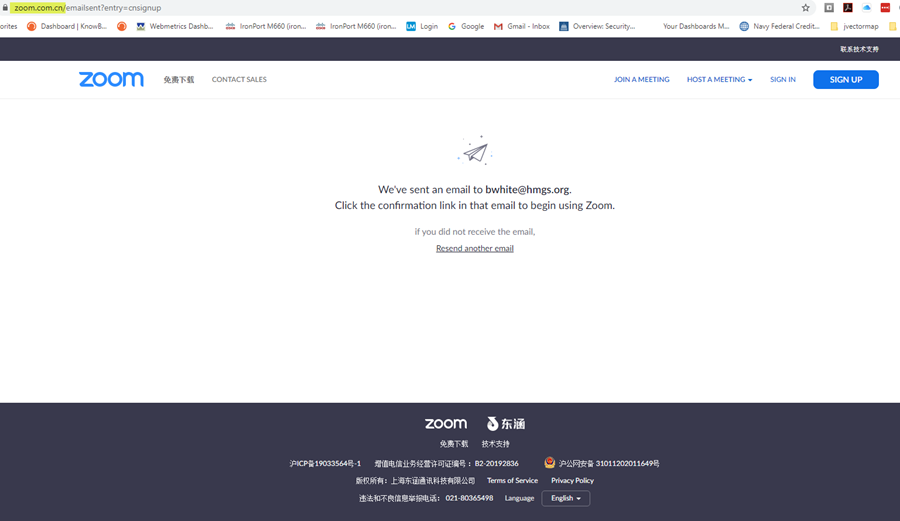
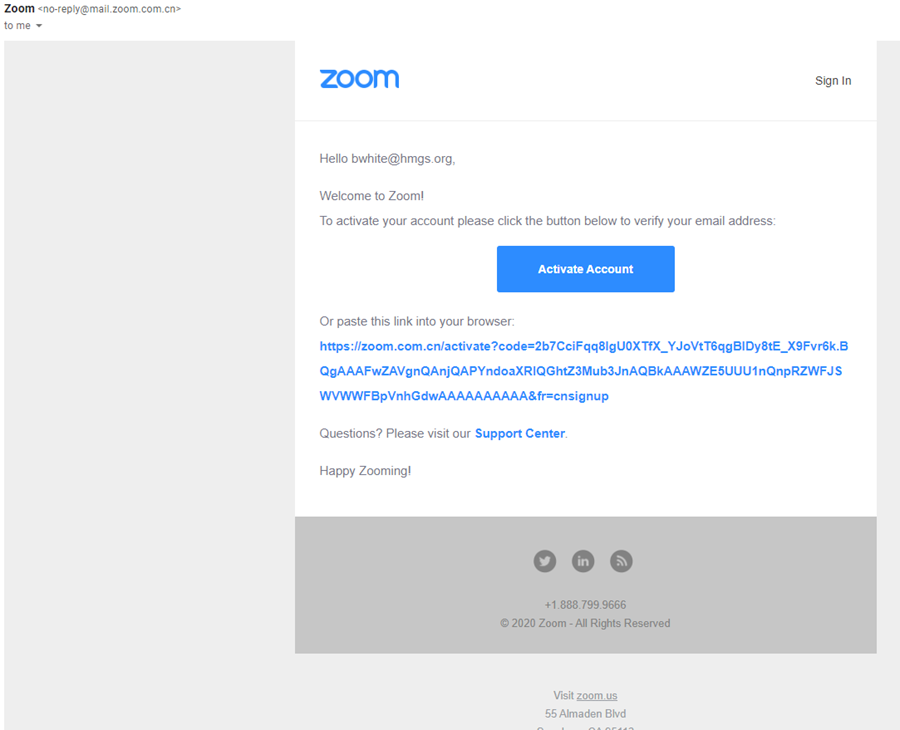
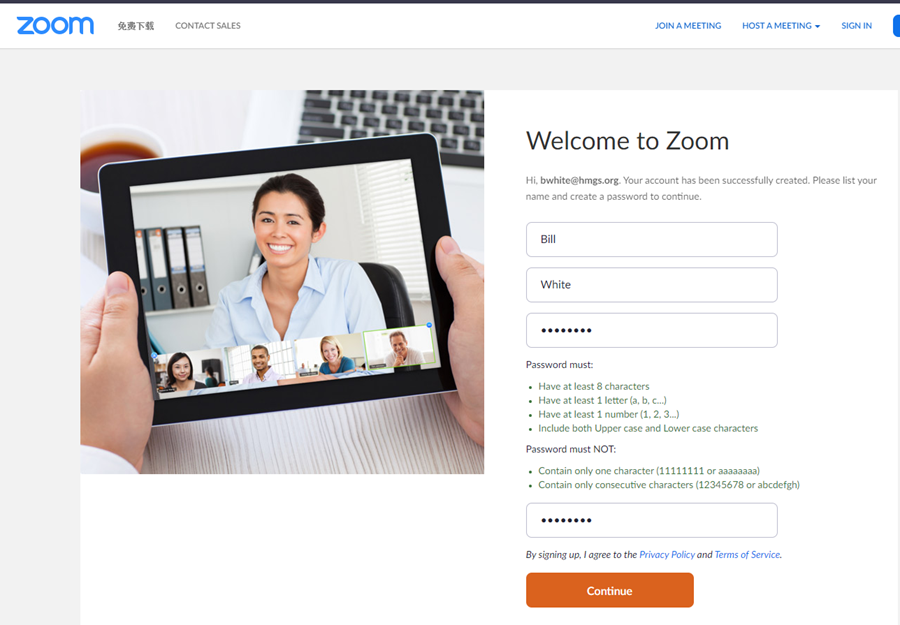
Step 5: Click the link to activate your account. Complete the requested information.
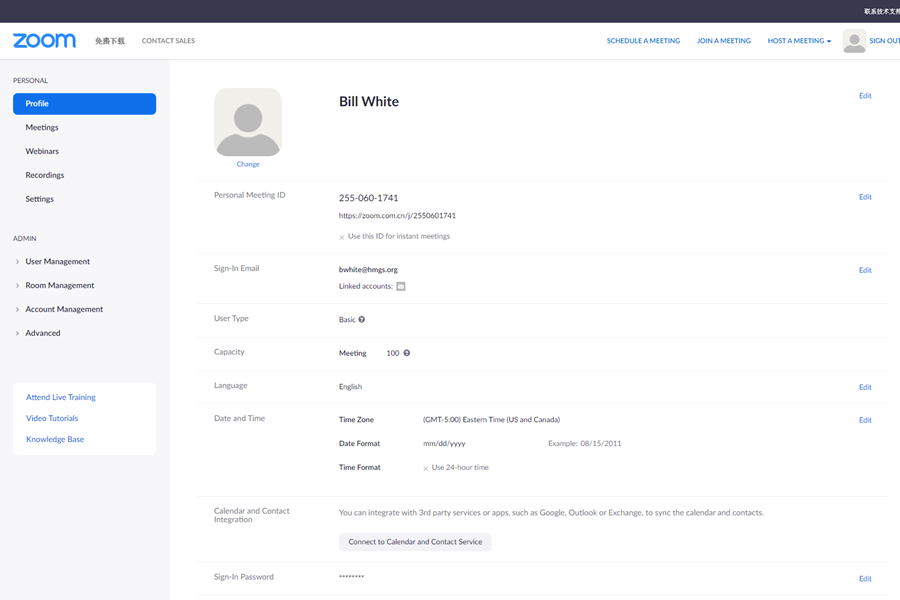
Step 6: The following screen will appear that shows your profile.
Resources (Courtesy of Zoom Support)
Screen Sharing
https://support.zoom.us/hc/articles/201362153-How-Do-I-Share-My-Screen-
Recording
https://support.zoom.us/hc/articles/201362473-Local-Recording
Audio/Video Testing
https://support.zoom.us/hc/articles/201362283-Testing-computer-or-device-audio
Screen Sharing a PowerPoint Presentation
https://support.zoom.us/hc/articles/203395347-Screen-Sharing-a-PowerPoint-Presentation
